Ronin Wallet Setup: Step-by-Step Guide
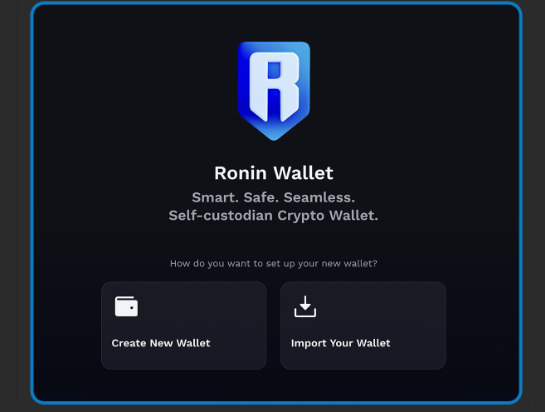
The Ronin Wallet is the official wallet for the Ronin Network, which enables users to securely store, manage, and transfer their Ronin Network assets. In this guide, we will provide a step-by-step tutorial on how to set up and use the Ronin Wallet on your desktop/laptop.
How to create a Ronin Wallet? Creating a Ronin Wallet is a straightforward process that can be completed through either the browser extension or mobile application. The following guide demonstrates the browser extension method: First, install the Ronin Wallet browser extension on your preferred browser (Chrome or Firefox). Open the newly installed extension and click the "Get Started" button, which will redirect you to the Ronin Wallet setup page. Select "I'm new. Let's get set up!" to begin the configuration process. Next, create a strong and unique password for your wallet and click "Create Wallet." The system will then display your seed phrase in masked form. Click "Reveal Seed Phrase" and carefully write down the entire sequence of words. Store this seed phrase in a secure location, such as a safe or safety deposit box, as it will be essential for wallet recovery if needed. Never share your seed phrase with anyone under any circumstances. After backing up your seed phrase, you will be prompted to re-enter it to verify that you have properly recorded it. Once you complete this verification and click "Continue," your Ronin Wallet will be fully activated and ready to use. It is crucial to understand that Ronin Wallet operates as a non-custodial service, meaning that only you have access to your funds—not even Ronin developers can access your wallet. If your seed phrase or private keys are lost, stolen, or destroyed, recovery is impossible. Therefore, it is recommended to write down your seed phrase and store copies in two or three separate secure locations to safeguard against unforeseen circumstances. Once your Ronin Wallet is created, click on the browser extension icon to open your wallet interface. At the top of the interface, you will see your account identifier (such as "Account #") along with your unique Ronin Wallet address. You will need to provide this address when depositing or receiving assets. The "Assets" section displays your current balance of ERC-20 and ERC-721 tokens, while the "Activities" tab allows you to review your complete transaction history.